

A colleague asks for the product feed your job exported in April. You open Cyberduck, browse to /impex, and find nothing. Nobody on the team deleted it — the platform did, right on schedule, and it never asked. Welcome to file management on Salesforce B2C Commerce Cloud, where every file travels over WebDAV and lives by WebDAV’s house rules.
This post covers those rules: the folders you can reach, how authentication works for people and for machines, and the places where the platform quietly parts ways with the official WebDAV standard.
What is WebDAV?
Web Distributed Authoring and Versioning, commonly known as WebDAV, extends HTTP with verbs for managing files on a remote server. Plain HTTP mostly reads documents; WebDAV adds commands to upload (PUT), create folders (MKCOL), move, copy, and list directories (PROPFIND). The IETF started the work in 1996, and the current core of the protocol is defined in RFC 4918.
The standard promises more than file transfer, though. RFC 4918 defines locking, so two authors cannot overwrite each other’s work. A companion standard, RFC 3253 (“DeltaV”), defines the versioning that put the “V” in the name. Hold that thought, because SFCC implements neither. More on that below.
Many clients support WebDAV, including Cyberduck, Transmit, and FileZilla, and both Windows and macOS can mount a WebDAV location as a network drive. Any of them will do for SFCC work; pick the one your team already knows.
How is WebDAV used in Salesforce B2C Commerce Cloud?
Every B2C Commerce instance runs an embedded WebDAV server. There is no SSH, no SFTP, and no direct file system access on this platform. If a file lives on an instance, WebDAV is how it got there and how it will leave. That makes the protocol less of a convenience and more of a load-bearing wall:
- Code deployment: every cartridge upload is a WebDAV
PUTunder the hood, whether it comes from the CLI, your IDE plugin, or a CI pipeline writing into a code version. - Data import and export: jobs pick up and drop files in
/impex, which makes WebDAV the transfer channel for product feeds, price books, and delta exports. - Log access: the platform writes its debug, error, and security logs to WebDAV folders, so reading them is a WebDAV download.
- Catalogue media and content: developers can manage product images and content library assets without going through the Business Manager UI.
- Backups: before a risky import, you can download the current files and keep a copy on your side of the connection.
The Folder Map
Every WebDAV location on an instance sits under the same URL prefix:
https://{instance-hostname}/on/demandware.servlet/webdav/Sites/
Behind that prefix, the platform exposes a fixed set of top-level folders. You cannot create your own top-level directory; everything you do lives inside one of these:
/impex: the staging area for imports and exports. Jobs read their input from/impex/srcand drop their exports there too; this is where your feeds land./cartridges: one subfolder per code version, each containing the uploaded cartridges. This is what your deployment tooling writes to./logs: application and system logs, one file per log level, per application server, per day./securitylogs: the audit trail of logins, permission changes, and other security events. Read-only for everyone. The platform refuses write permissions here, so nobody can tamper with the trail./catalogs,/libraries,/static,/dynamic: static files belonging to catalogues and content libraries, mostly product images and library assets./tempand/realmdata: narrower working folders you will rarely touch by hand.
You do not need a third-party client to look around. In Business Manager, Administration > Site Development > Development Setup has a Folder Browser tab that shows every folder your permissions allow, with download links and a “Copy WebDAV URL” button for each directory.
One practical warning: these locations enforce HTTPS. Connect over plain http and the instance answers with “Access Denied”, a confusing error for what is really a missing SSL checkbox in your client’s connection settings.
Authentication
So how do you get in? That depends on who is asking. WebDAV on SFCC serves two kinds of callers: people using a desktop client, and machines talking to the instance in an integration. The platform authenticates them differently, and the permissions live in two different Business Manager modules.
Authentication for Business Manager Users
When the WebDAV client is a Business Manager user in a desktop application such as Cyberduck or FileZilla, Salesforce B2C Commerce Cloud uses Basic Auth: a username and password. It’s up to the merchant to set this up through the configuration of authorisation rules specific to folders in the Business Manager.
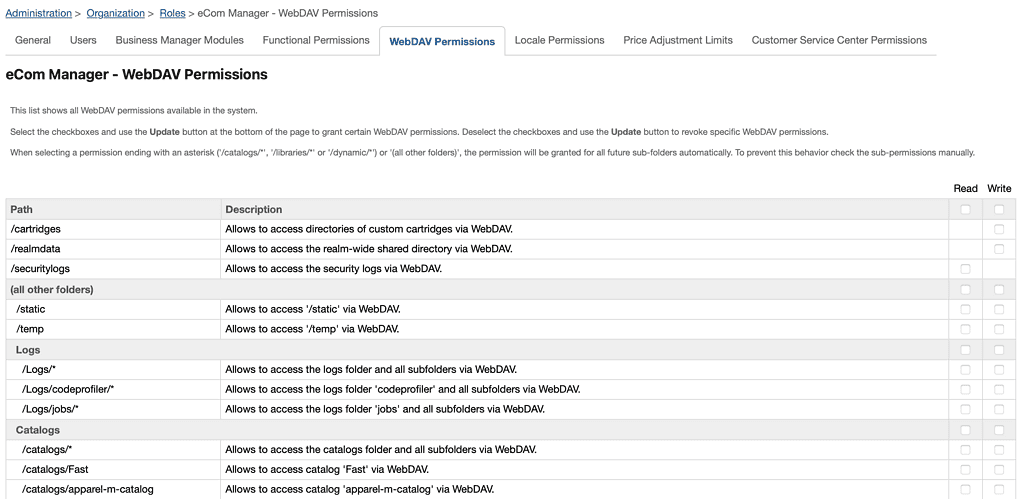
To manage these folder-specific permissions, navigate to the Roles module in Business Manager and adjust the settings in the WebDAV Permissions tab. Here, you can assign different access levels (read, write, or both) to various directories within WebDAV, ensuring Business Manager users only have access to the files necessary for their role.
Access Keys: A Scoped Stand-In for Your Password
A reasonable worry at this point: Account Manager accounts require multi-factor authentication, and Cyberduck has no way to show you an MFA prompt. Does WebDAV still work? It does. The MFA requirement covers interactive logins such as Business Manager, Account Manager, and Log Center. WebDAV Basic Auth counts as an API login: no second factor is requested, and your Account Manager username and password work as-is.
That convenience cuts both ways. It also means your password alone protects every file your roles can reach, with no second factor backing it up. This is why Salesforce offers an access key as an optional substitute for your password in external applications: a generated secret scoped to a single purpose, such as WebDAV file access. Click your username in the top-right corner of Business Manager, choose Manage Access Keys, generate a key with the WebDAV scope, and hand that key to your WebDAV client instead of your real password. If the key leaks, you revoke one scoped credential rather than rotating the password that opens Business Manager everywhere.
If you do adopt them, two properties of access keys are worth knowing before they surprise you:
- They expire after a year, so a WebDAV connection that worked for months and suddenly returns 401 is probably sitting on an expired key.
- Six wrong attempts lock the scope. After six failed logins, neither the key nor your password works for that authentication scope any more, and you need to generate a fresh key.
The key is shown once, at generation time. Store it in your password manager immediately, because there is no way to view it again later.
Authentication for API Clients
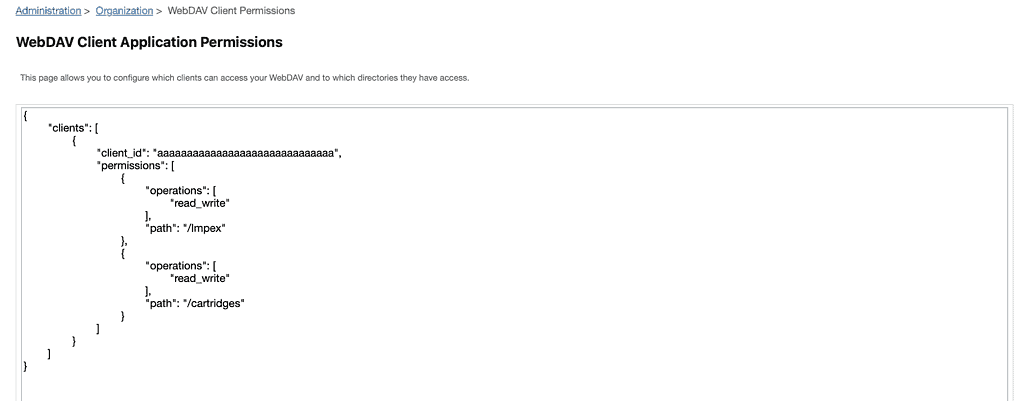
API clients engage in machine-to-machine communication and authenticate through an authorisation token generated in the Account Manager. To get this authorisation token, an API client must present its unique client-id and client-secret. After successful authorisation, WebDAV permissions for the API client can be configured in Business Manager in the WebDAV Client Permissions module.
Administration > Organization > WebDAV Client Permissions
The configuration is a single JSON document listing, per client_id, which directories that client may touch and whether it gets read or read_write. In the example below, the first client can write to /impex/src/foo but only read /impex/src/logs and /catalogs, while the second client owns the whole of /impex/:
{
   "clients":[
      {
         "client_id":"aaaaaaaaaaaaaaaaaaaaaaaaaaaaaa",
         "permissions":[
            {
               "path":"/impex/src/foo",
               "operations":[
                  "read_write"
               ]
            },
            {
               "path":"/impex/src/logs",
               "operations":[
                  "read"
               ]
            },
            {
               "path":"/catalogs",
               "operations":[
                  "read"
               ]
            }
         ]
      },
      {
         "client_id":"aaaaaaaaaaaaaaaaaaaaaaaaaaaaab",
         "permissions":[
            {
               "path":"/impex/",
               "operations":[
                  "read_write"
               ]
            }
         ]
      }
   ]
}
Things to Keep in Mind
Note
The permission paths for different clients cannot intersect each other, meaning that if you configure one client with permissions for
/impex/src, you can’t have another set for/impex/src/foo. This restriction is in place to prevent potential conflicts and overlaps in permissions.
Permissions are granted per directory, never per file, and the path must start with one of /impex, /catalogs, /dynamic, /libraries, /logs, /static, or /securitylogs. And as mentioned in the folder map, /securitylogs accepts only read: the configuration screen rejects read_write for that path.
Where SFCC Parts Ways With the Standard
The official WebDAV specification describes a richer protocol than the one SFCC ships. Three differences matter in practice.
There is no versioning. Despite the “V” in the name, B2C Commerce does not implement the DeltaV extension: the documented command set stops at PROPPATCH, with no VERSION-CONTROL, CHECKOUT, or REPORT in sight. To be fair to Salesforce, almost no WebDAV server implements DeltaV. But the consequence deserves a plain statement: when you overwrite or delete a file over WebDAV, it is gone. No history, no rollback, no recycle bin. Cartridges get their safety net elsewhere, through code versions you can switch between. For everything else (impex feeds, media, configuration exports), the only version history is the one you keep on your own systems.
There is no locking. LOCK and UNLOCK are missing from the supported commands, which means SFCC is a class 1 WebDAV server: last write wins. If your nightly job writes an export while a colleague uploads a file with the same name, nobody gets an error and one of the files silently disappears. Coordinate through naming conventions and folder ownership, because the protocol will not coordinate for you.
COPY behaves differently than the RFC says. Since the 22.3 release, the platform refuses to copy a folder’s content into itself, to prevent a recursive copy from filling the file system. A sensible safeguard, but the deviation from RFC 4918 has a sharp edge: if a folder with the same name as the destination already exists in the source, nothing is copied and no error is reported. A scripted copy can silently do nothing. If a COPY matters, verify the result instead of trusting the status code.
The full command set, for reference: GET, OPTIONS, and PROPFIND count as read operations; PUT, POST, DELETE, MKCOL, COPY, MOVE, and PROPPATCH count as write operations, joined by two platform-specific verbs, ZIP and UNZIP. Note that COPY needs read permission on the source and read_write on the target, while MOVE needs read_write on both.
Limits, Timeouts, and Housekeeping
WebDAV on SFCC comes with numbers attached, and knowing them saves an afternoon of debugging. They sit alongside the platform’s other ceilings, which I’ve catalogued in the survival guide to SFCC platform limits.
- Uploads are capped at 500 MB per WebDAV push (raised in the 22.9 release). Salesforce recommends zipping files before upload. Thanks to the platform-specific
UNZIPverb, you can upload one archive and unpack it on the server instead of pushing thousands of small files. - Downloads into a file are capped at 200 MB. Larger exports need to be split or compressed first.
- Requests time out after five minutes. A slow connection pushing a large file can hit the timeout well before the size cap.
Then there is the housekeeping the platform does whether you like it or not:
/impexfiles are deleted after 30 days. This is where April’s export went: the folder is a transfer area, not storage. Job logs under/impex/loglast 30 days on staging and production, but only 7 days on sandbox and development instances.- Log files are deleted after 30 days, and after three days they are moved into a
log_archivefolder and gzipped, so a script that reads yesterday’s logs needs to handle both locations. Security logs are the exception at 90 days. - A folder holds at most 100,000 files. Beyond that, the platform deletes the oldest files first, even if they are within their retention period.
One more platform quirk: the WebDAV server resets file timestamps on every rename, copy, modify, or create, including a remote unzip. If your integration decides what to process based on modification dates, a housekeeping move on the instance can make old files look brand new.
WebDAV From Script Code
Your own server-side code can speak WebDAV too. The dw.net.WebDAVClient class lets a job connect to a merchant’s WebDAV server to fetch or deliver files, supporting GET, PUT, MKCOL, MOVE, COPY, PROPFIND, OPTIONS, and DELETE. It has its own size ceilings: a get() into a string defaults to 2 MB (10 MB maximum), and a get() into a file defaults to 5 MB (200 MB maximum).
The class documentation carries a warning worth addressing. It claims the client “cannot be used to access the Commerce Cloud Digital server via WebDAV protocol”, meaning a B2C instance can’t talk WebDAV to itself or to another instance. In practice, that restriction doesn’t hold. Authenticate like any other WebDAV caller and the connection works, to the instance’s own WebDAV server and to another instance’s, so a job that pulls yesterday’s export from production into a lower environment is possible. Just don’t read that as an invitation to rebuild replication out of jobs and COPY calls. For code and shared data, replication remains the sanctioned route.
So treat the instance file system as what it is: a loading dock, not a warehouse. The platform deletes on a schedule, keeps no versions, and locks nothing. If a file matters, the copy of record should live on your side of the connection. That way, the next time someone asks for April’s export, the answer is a link to your own archive, not an apology.